Launch an EC2 instance
Launch an EC2 instance.
- Navigate to EC2
- Select Instances
- Select Launch instances
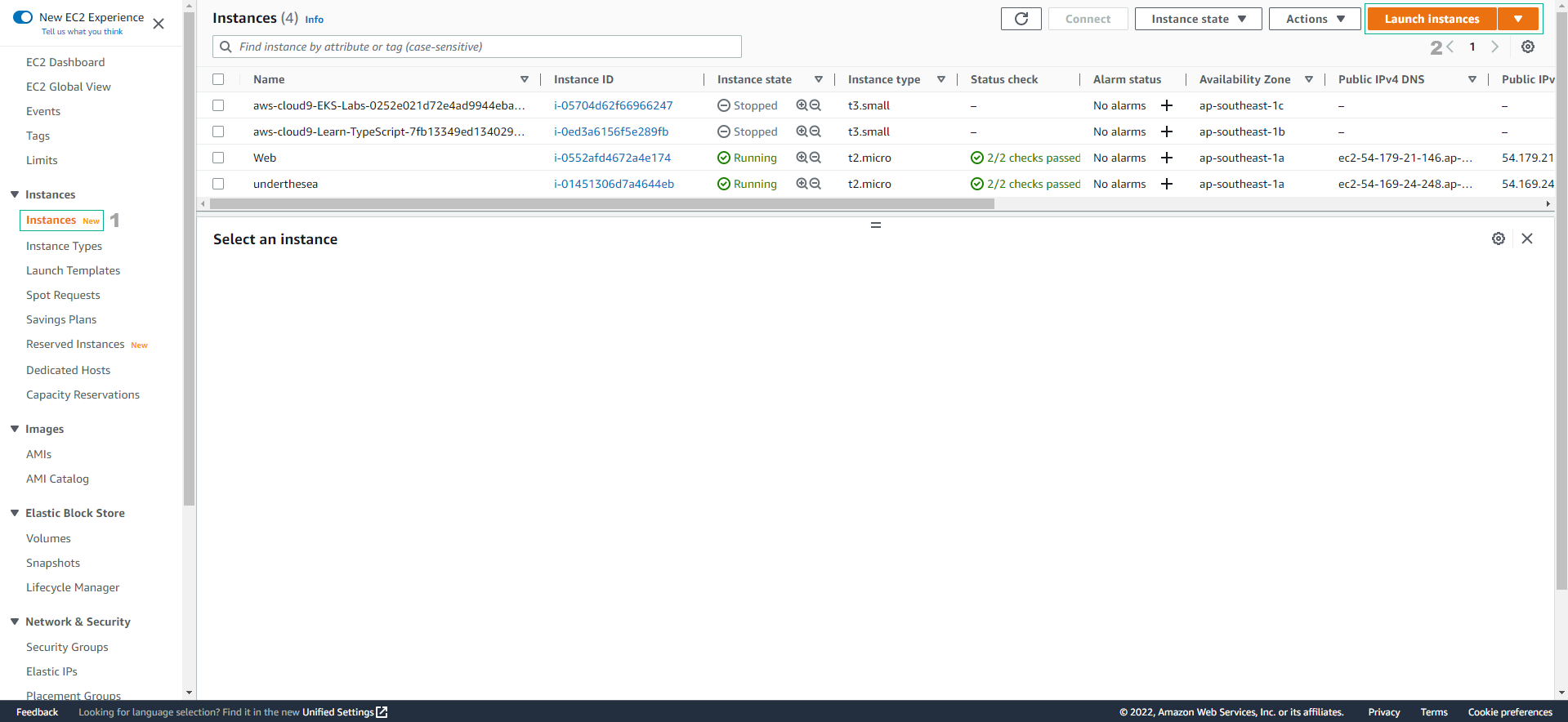
In the Launch an instance interface:
- Name and tags, enter
CodeDeployDemo - Select Quick Start
- Select Amazon Linux
- Name and tags, enter
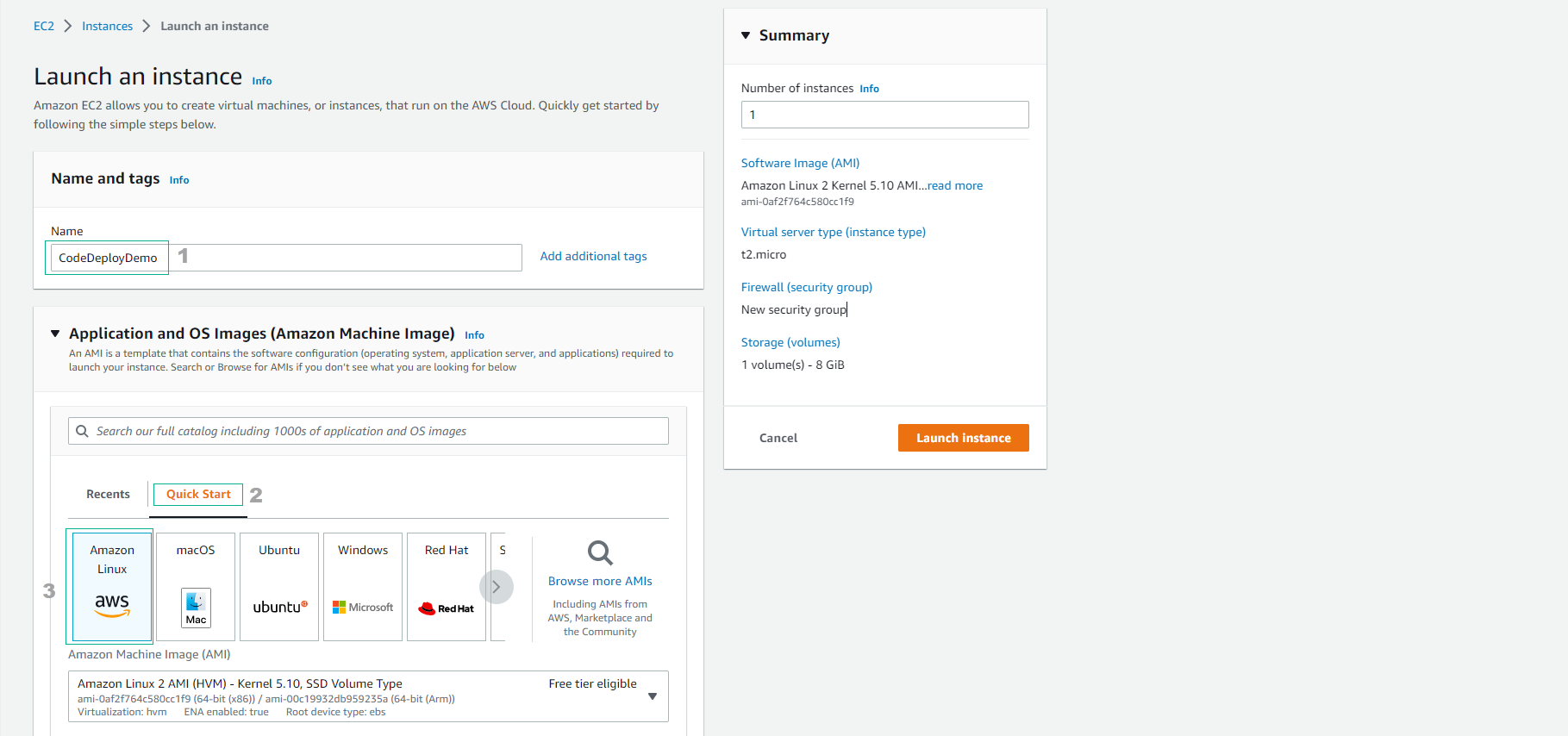
In the Instance type section, select t3.medium
- Select Create new key pair
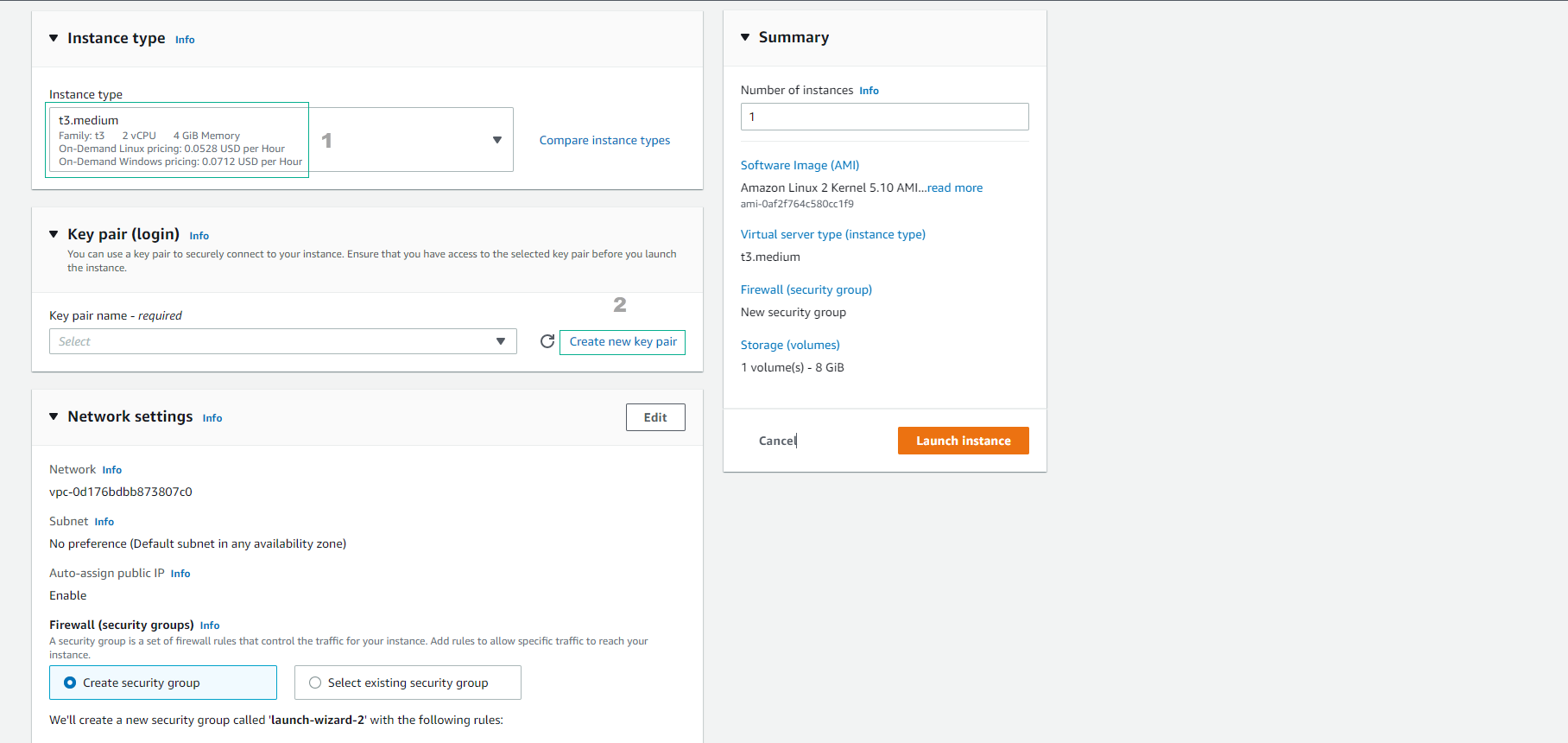
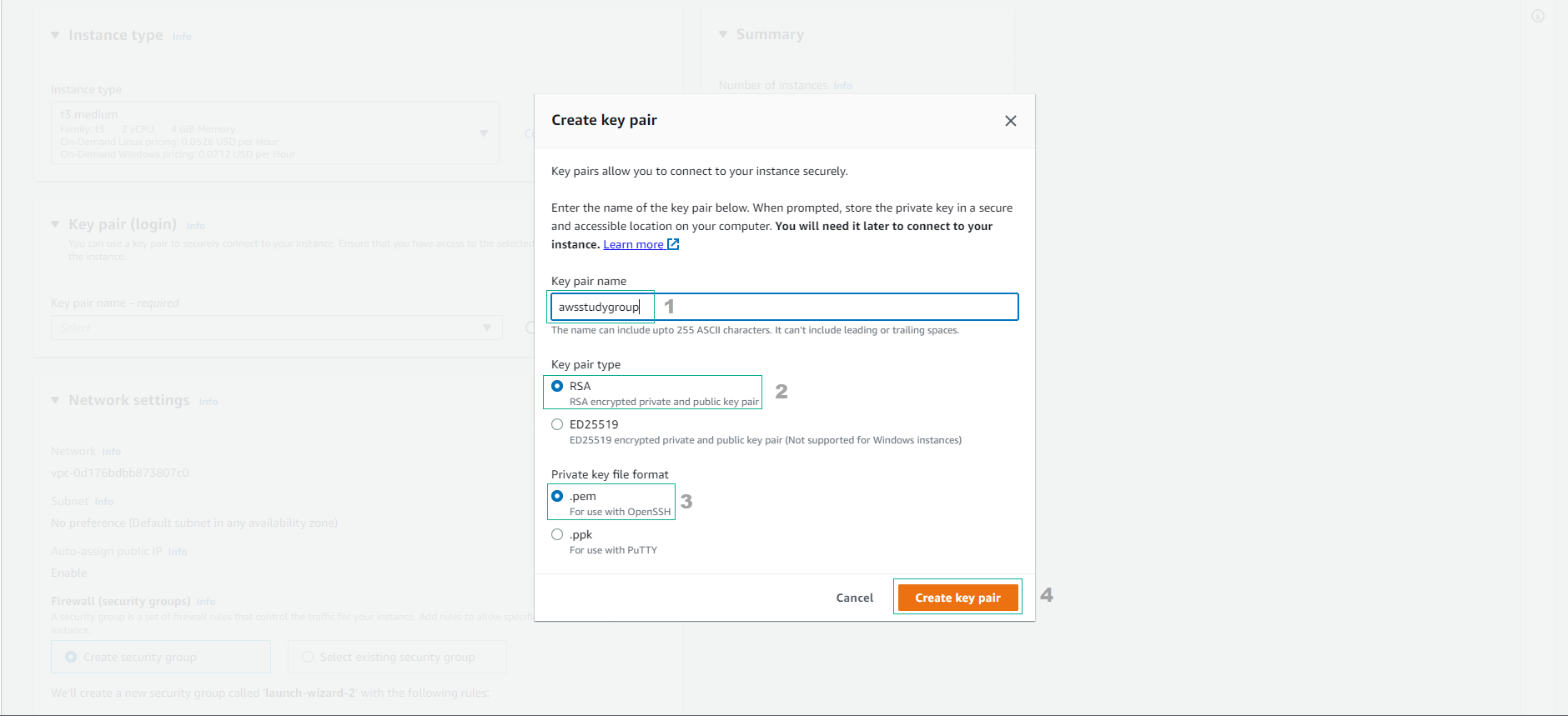
In the Key pair name section, enter
awsstudygroup- Select Create key pair
- This key pair should be carefully stored on your computer to be used for SSH access to the EC2 instance.
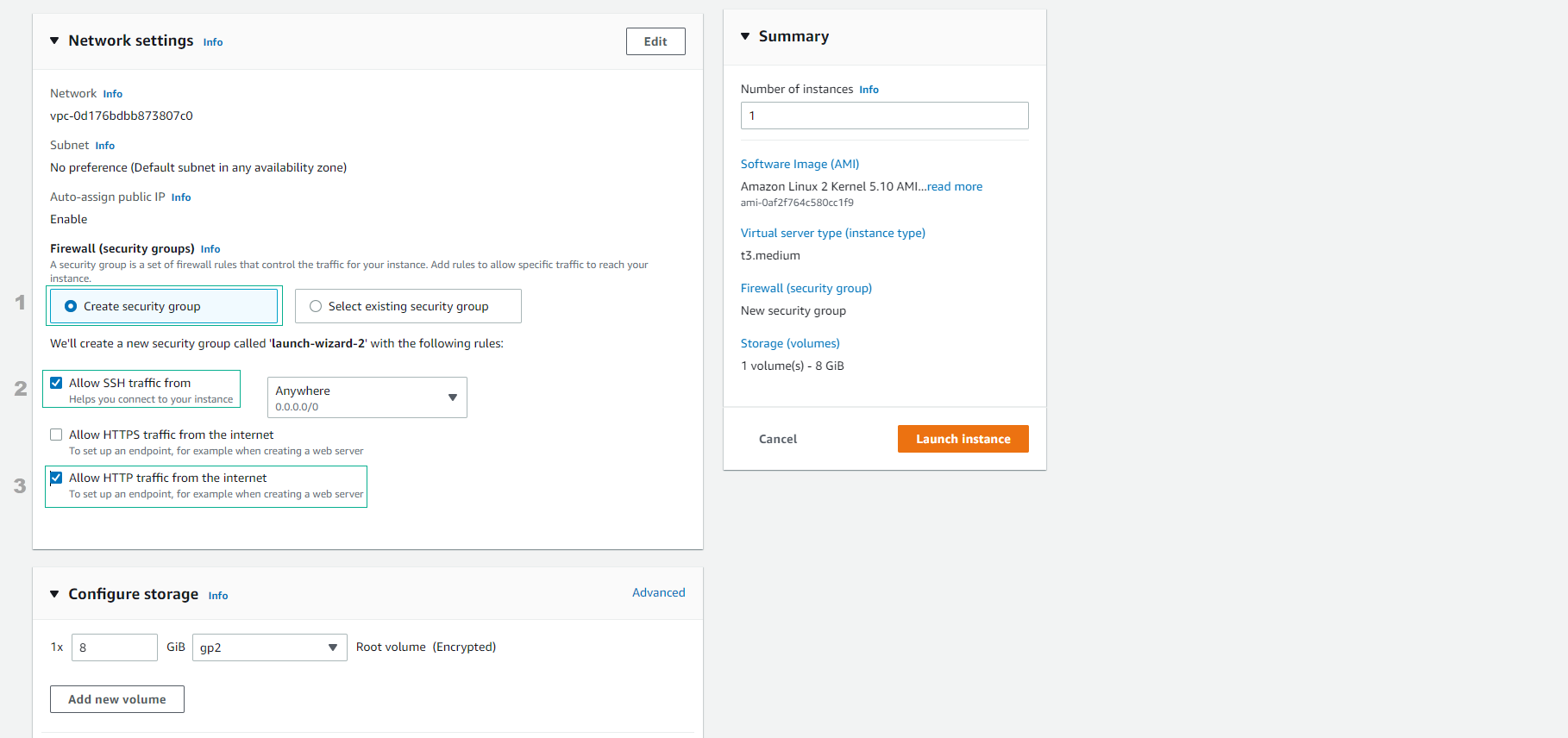
Configure network settings:
- VPC: default
- Subnet: a subnet of the default VPC (default is a public subnet)
- Auto-assign public IP: Enable
- Firewall (security groups): Create security group:
- SSH / Port 22 / Anywhere
- HTTP / Port 80 / Anywhere
- Advanced details:
- IAM instance profile:
CodeDeployDemo-EC2-Instance-Profile
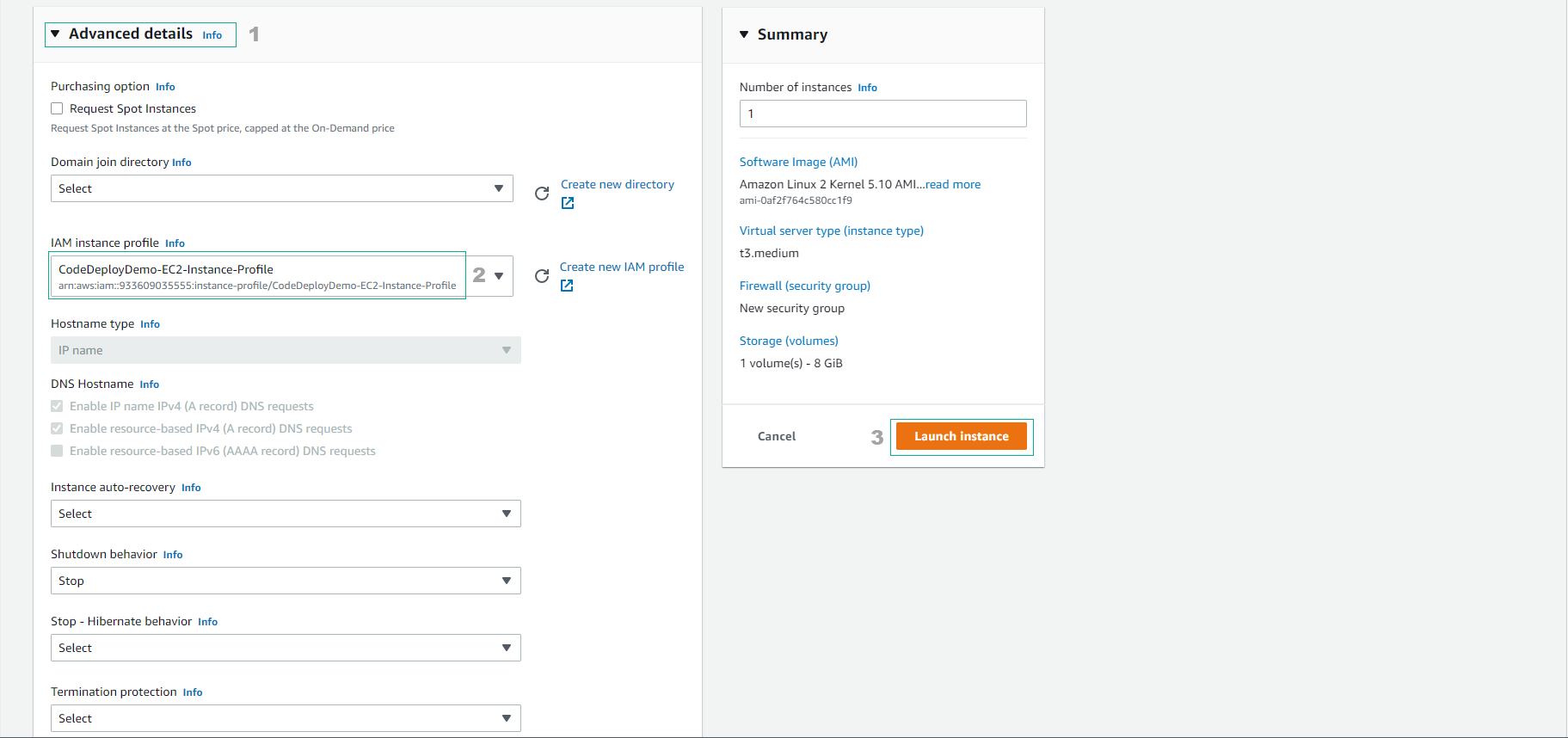
- Complete the EC2 instance creation.
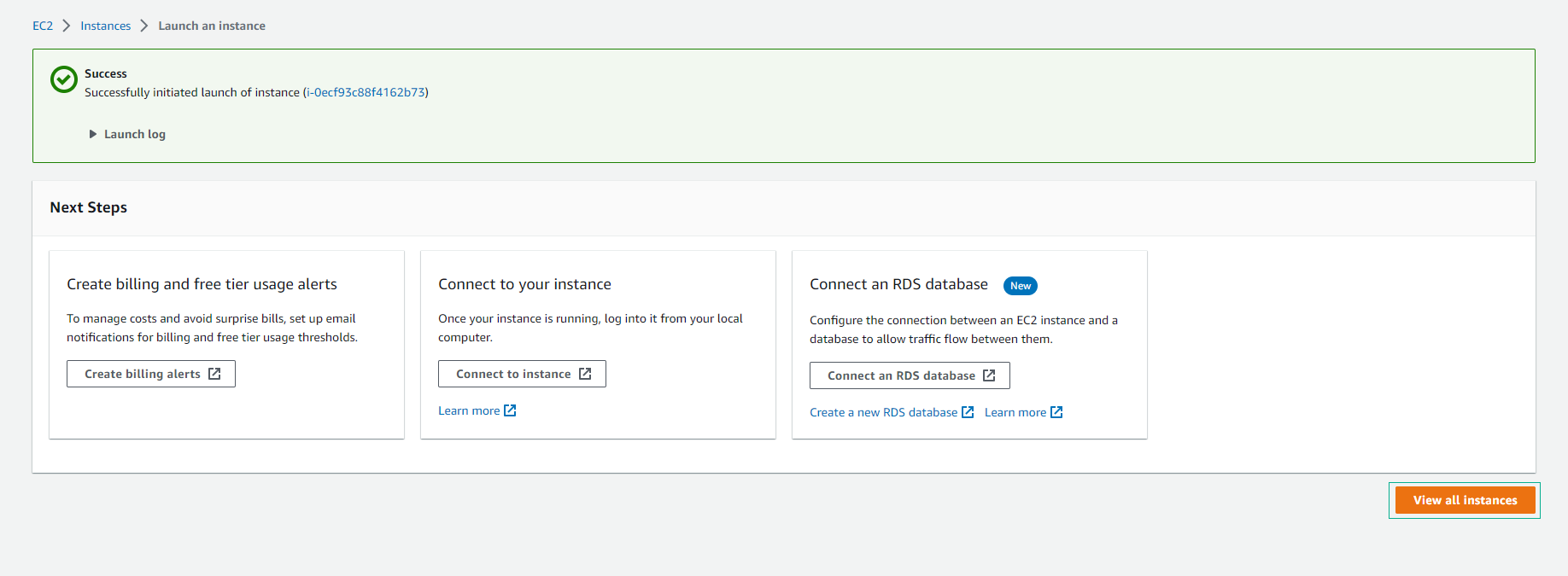
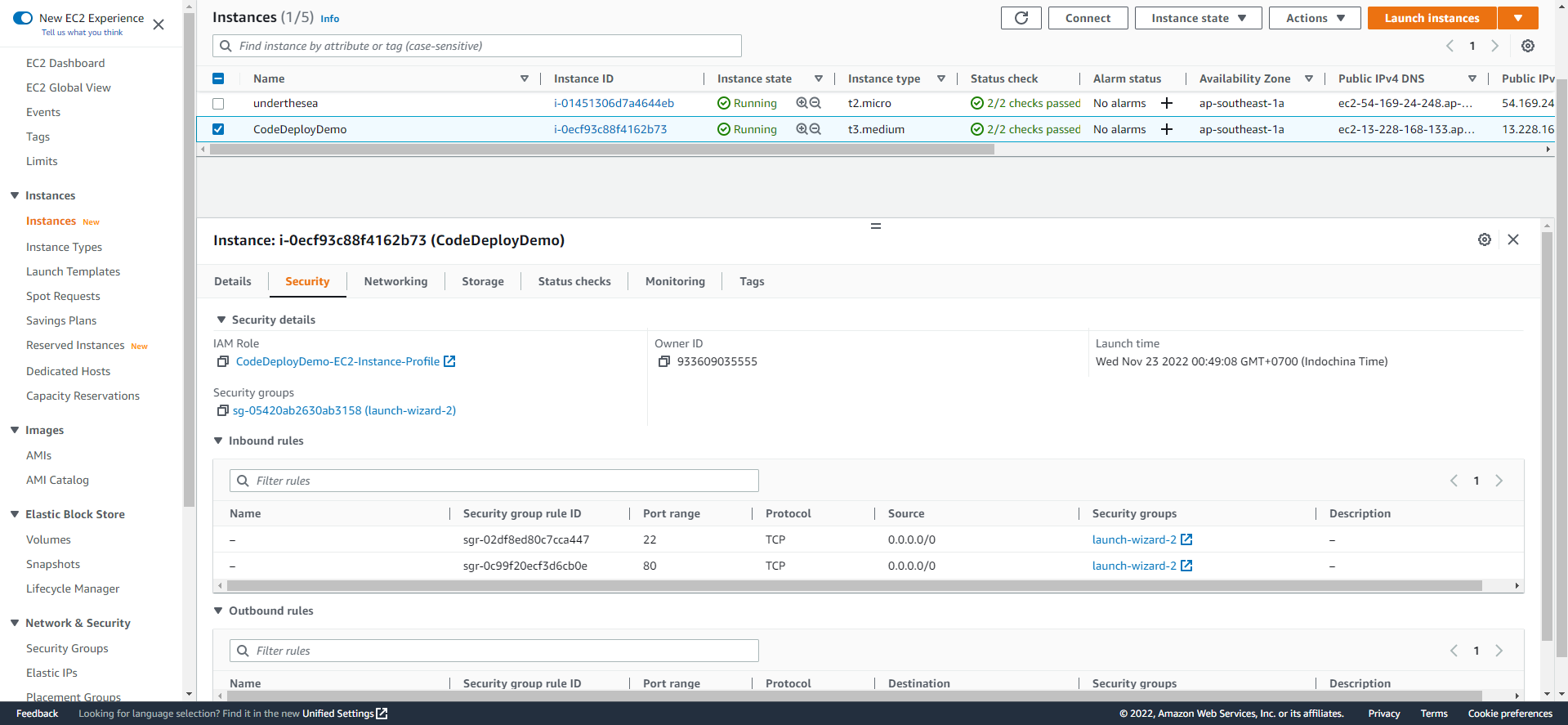
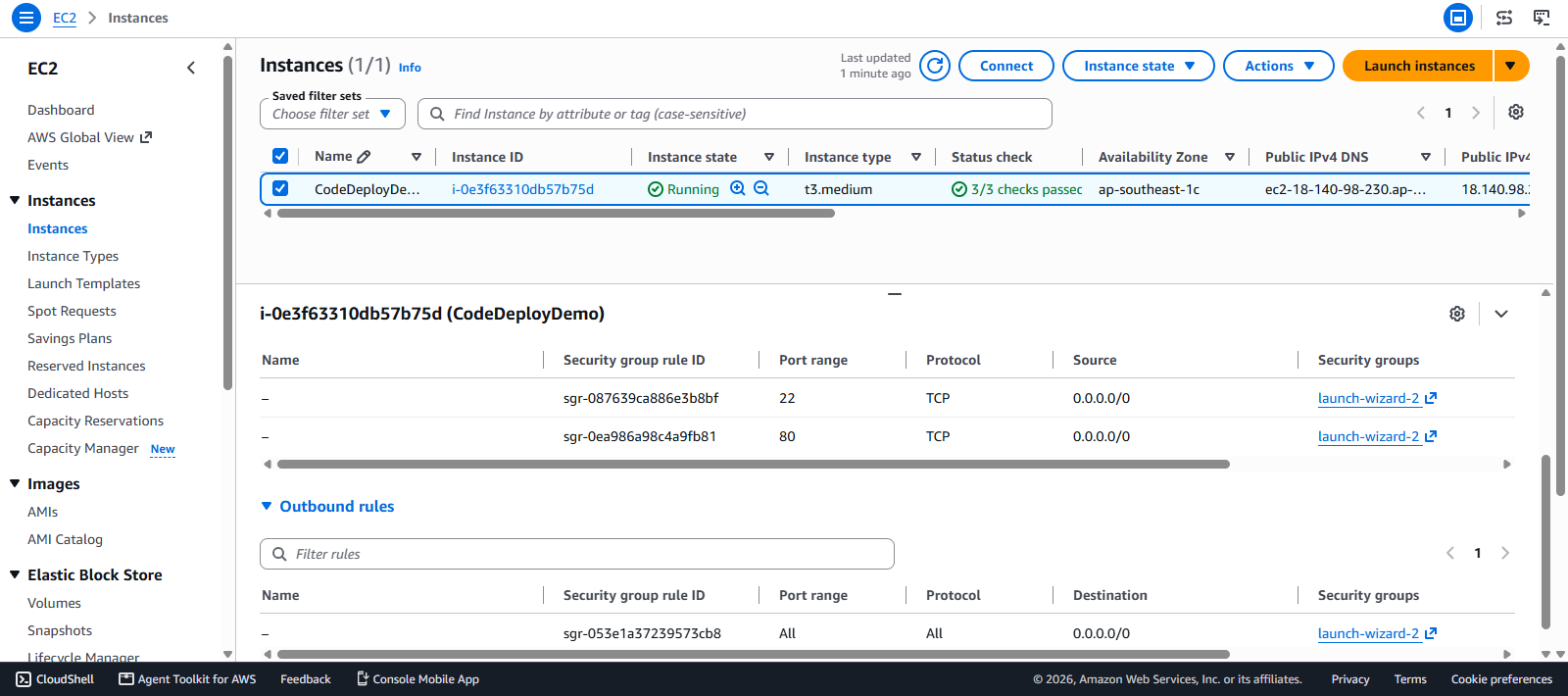
- Check the EC2 instance details after about 3 minutes of initialization.
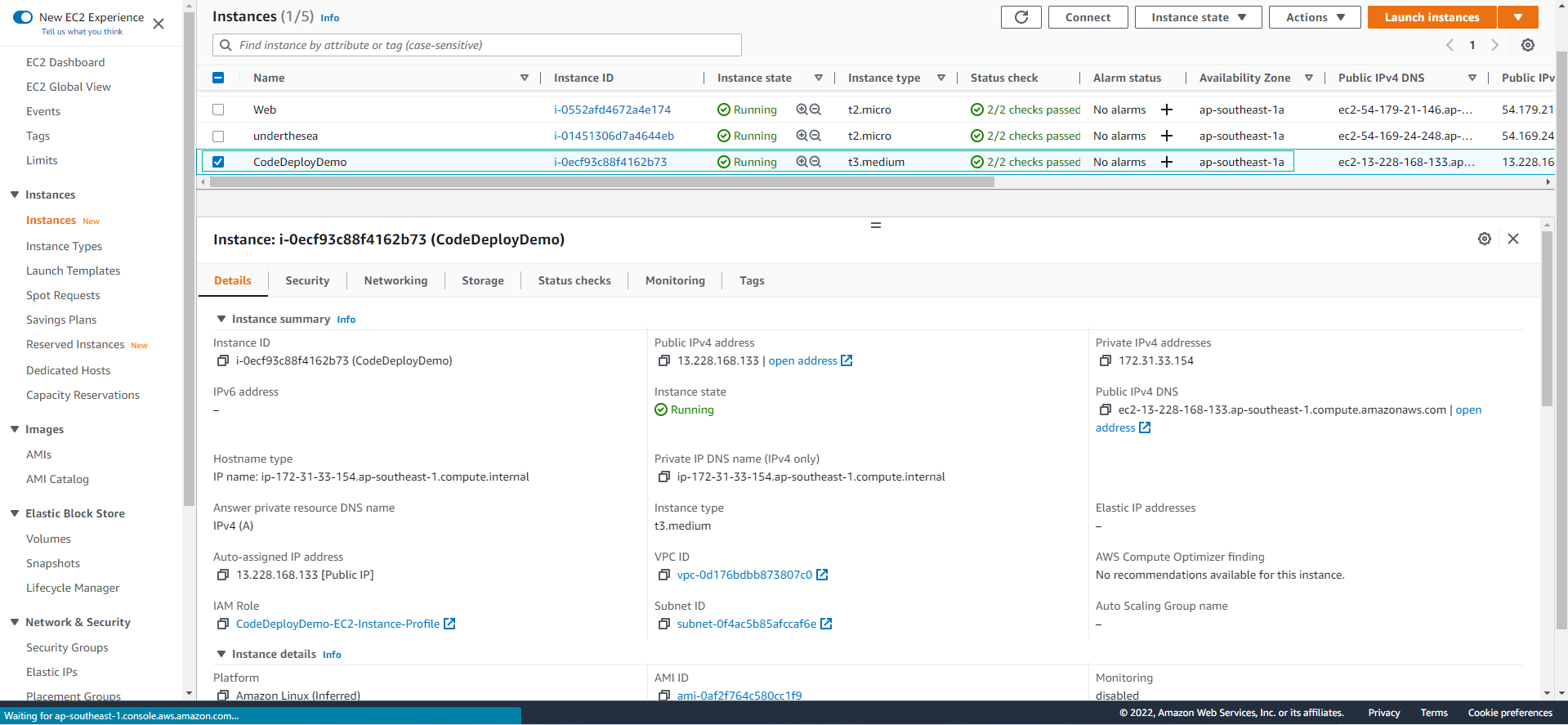
- Check the Security configuration of the EC2 instance.